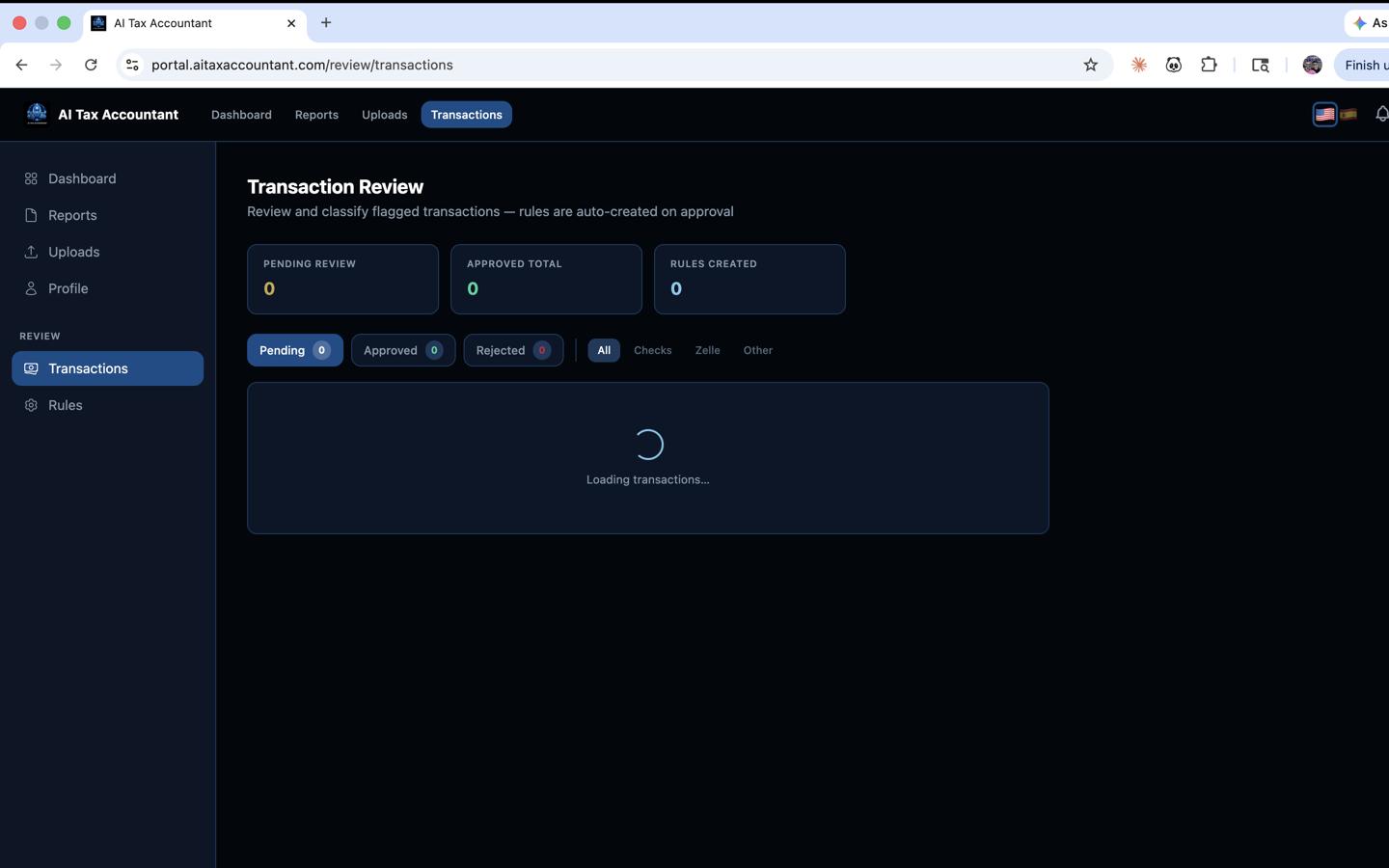
When the AI classifies a transaction incorrectly, you can fix it in a few seconds without re-uploading anything. The Reclassify Transaction modal is built for this exact case and is available anywhere a transaction is listed.
Step 1 — Open the modal
From Transaction Review or any transaction list, click the row (or the pencil icon next to it). The Reclassify Transaction dialog opens with a summary at the top: description, date, amount, and current classification (for example, "Currently classified as: 6100 · Office Supplies").
Step 2 — Pick the correct classification
Use the Correct classification dropdown to choose the right GAAP account. The picker shows your full effective Chart of Accounts — assets (1000s), liabilities (2000s), equity (3000s), revenue (4000s), COGS (5000s), operating expenses (6000s), and other expenses (7000s). If you try to save with the same classification, you'll see a warning — pick a different account to continue.
Step 3 — Add an optional note
The "Why are you reclassifying?" field is optional and limited to 300 characters. It's most useful for your own audit trail or for a tax preparer reviewing the books later — e.g., "This was a business meal, not a subscription."
Step 4 — Decide whether to save it as a rule
The "Remember this for future similar transactions" checkbox is on by default. When checked, the system will automatically classify similar future transactions the same way. Uncheck it if this is a one-off fix that shouldn't apply to other rows.
Step 5 — Save
Click Save Classification. You'll see "Classification updated. It will apply on your next report run." The change is logged, the rule (if you saved one) becomes part of your firm's logic, and the next report regeneration picks it up automatically.
Each client can only reclassify their own transactions. If you see a "you can only reclassify your own transactions" error, the transaction belongs to a different engagement.